
Flows
Flows are the core configuration of your automations. A Flow names a trigger, picks where it runs, and defines what executes and what happens next.
The Flows screen
Section titled “The Flows screen”Navigate to Flows in the sidebar — one screen for everything:
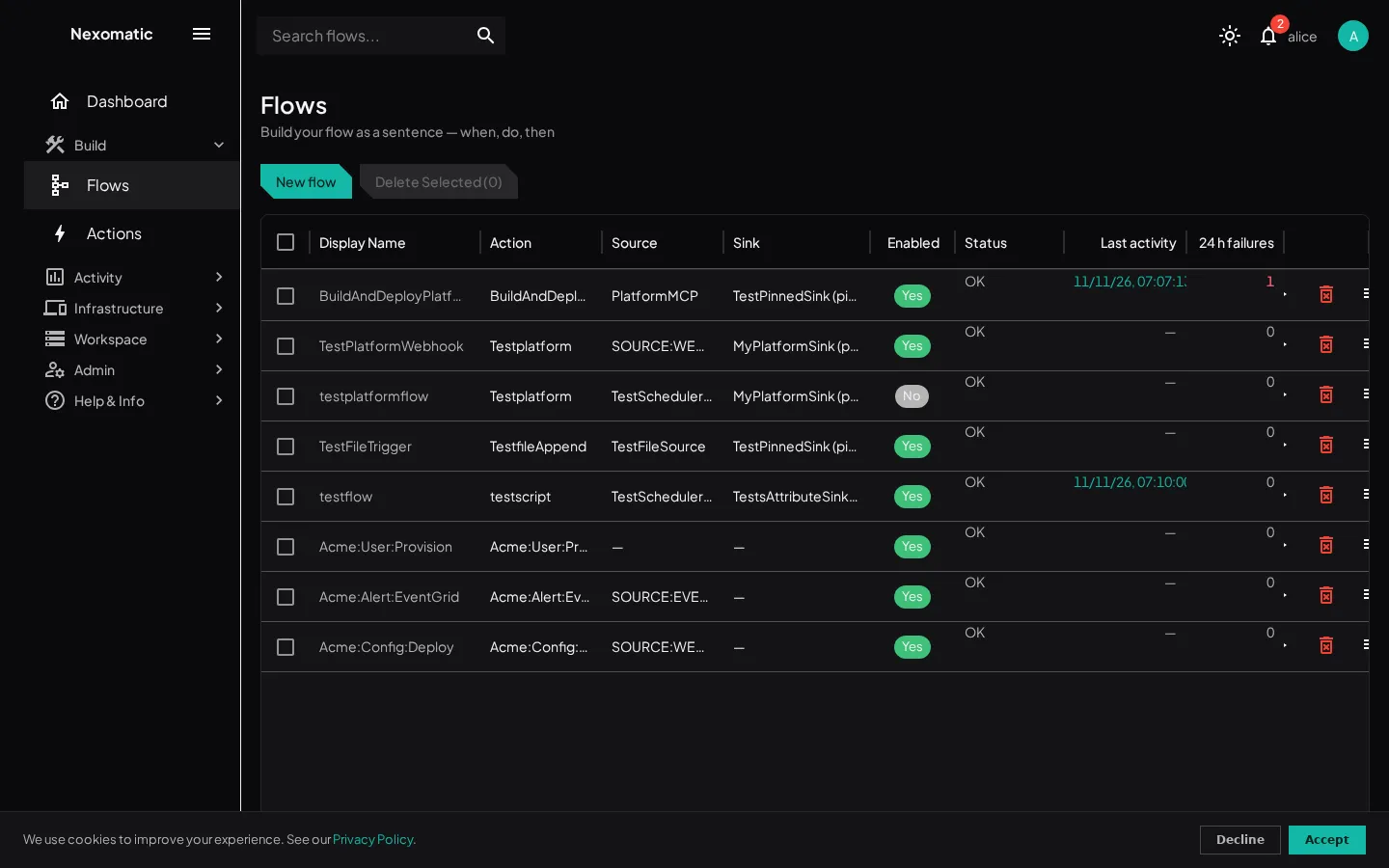
If you have no flows yet, the screen walks you through creating your first one.
What is a Flow?
Section titled “What is a Flow?”A Flow is a named definition that ties together:
- The sources that fire it (its trigger endpoints)
- The sink that executes it (placement + constraints)
- The action that runs when the event dispatches
- The chain — what runs next when the action succeeds or fails
One Flow can be triggered many times. Each trigger creates a new Event.
Creating or editing a Flow
Section titled “Creating or editing a Flow”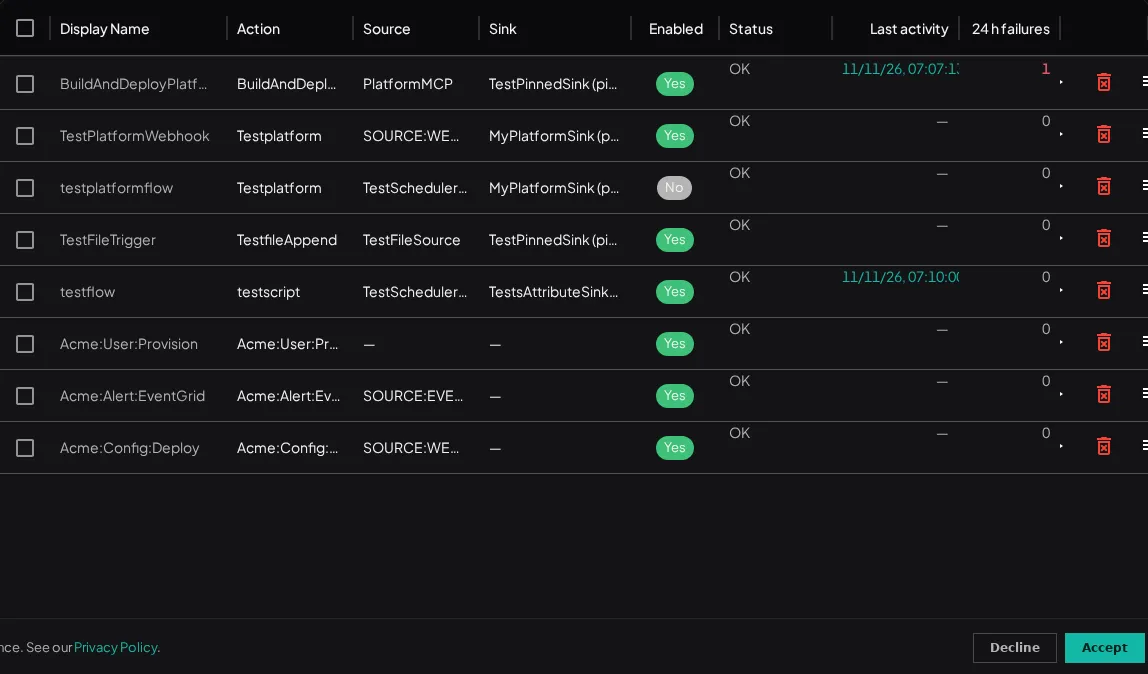
Like every other screen, Flows uses the standard grid → editor pattern: the grid is the default view (Display Name / Action / Source / Sink / Enabled / Status / Last activity / 24 h failures, checkboxes, Topbar search, 25 rows per page), and creating or opening a flow slides the full-screen sentence editor in. A new flow saves with its sources, steps, and chain in one go (no “save first” gating).
Last activity shows the flow’s most recent event (a dash when it never fired); clicking it opens the Runs screen filtered to that flow. 24 h failures counts the flow’s failed events in the trailing 24 hours; clicking the count opens the Runs screen filtered to those failed states — one click from state to evidence. The Source column joins a multi-source flow’s source names (“Nightly + MCP”); the Status column shows Held when the sink or any of the flow’s sources is in error.
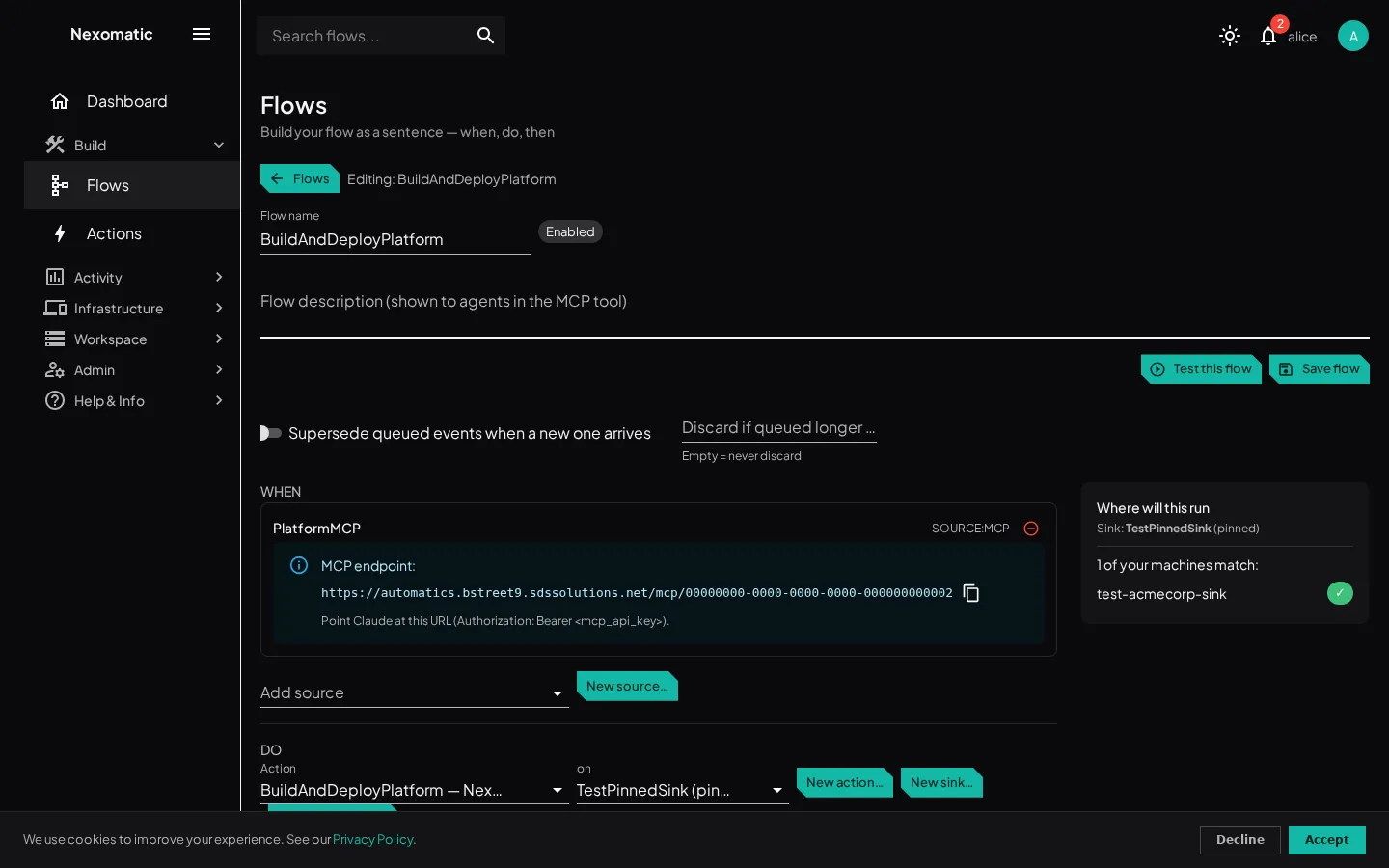
A flow can have several trigger sources — a schedule and an MCP endpoint, for instance — and every source fires the flow independently, each with its own config. Pick an existing source or create one with New source…: choose a preset from the preset catalog, fill its connection config, place it (pinned to a source node, or platform), and name it. Each added source renders its own block on the WHEN line:
- A schedule source shows the flow’s trigger rows — add more crons with Add trigger… (each row fires on its own crontab) — plus the source’s cron from its connection config. Add trigger… also covers a file source’s watch-path sets and an MQTT source’s topic sets: every trigger row fires independently.
- An MCP source exposes the flow as a trigger tool on your tenant’s MCP endpoint (see the MCP server guide); the tool’s arguments are the flow’s DATA params.
- A webhook source shows the flow’s address once saved —
https://<webhook-host>/webhook/<tenant>/<flow-uuid>— with a copy button next to it. A webhook source pinned to a node serves its address from that node’s own webhook listener instead.
One source per type per flow: a flow cannot carry two schedule sources, but it can combine a schedule with an MCP source. Removing a source removes its trigger rows. A flow with no sources is manual-only — it never fires by itself; start it from the grid’s run-now action. Connection params render by type: secrets are a dropdown of your tenant’s secrets, true/false params are switches.
Pick the action, then its placement in the on picker:
- A named sink (pinned to a node, or any-matching with constraints)
- any matching node — the built-in choice: the hub picks one of your nodes covering the action’s needs
- platform — the built-in choice for platform resources
New action… builds an action from a library and module, showing each library’s declared requirements at pick time.
Add steps: if an action succeeds or fails, run another action on a placement. Several steps for the same outcome fan out in the order listed.
Test this flow
Section titled “Test this flow”A saved flow can be tested before enabling: Test this flow in the editor fires one test event through the flow’s real dispatch path and shows the outcome inline (the event’s state on success, the error on failure). The test never changes the flow’s enabled state, and it works while the flow is disabled — other event registrations for a disabled flow keep being rejected, only the test event goes through. Note the test is one real fired event: it appears on the Runs screen and counts toward plan usage.
Run now (grid)
Section titled “Run now (grid)”Every grid row carries a run now action: it fires the flow once as a real run — not a test — and jumps to the Runs screen filtered to that flow. When the flow declares DATA params, a dialog collects them first. Like the test, run now works while the flow is disabled; the run shows Manual in its Trigger column on the Runs screen.
The right rail
Section titled “The right rail”While you edit, the right rail shows where this will run: which of your nodes cover the step’s needs and constraints, or a clear “no node matches” note.
Tracing runs
Section titled “Tracing runs”The Runs screen is one row per run: the root event and its fan-out branches collapse into a single row, and opening the run shows the whole chain as a tree in its trace (see the Runs page).
Next Steps
Section titled “Next Steps”- Actions & Libraries — the execution layer: libraries, modules, actions, and chaining
- Core Concepts — detailed definitions of all entities
- Sinks & Sources — where sink rows and sources are managed