
Nodes
Nodes are the machines your automations run on. A node is either a source node (watches for events — files, MQTT, webhooks) or a sink node (executes actions); one node never does both. Navigate to Nodes in the sidebar.
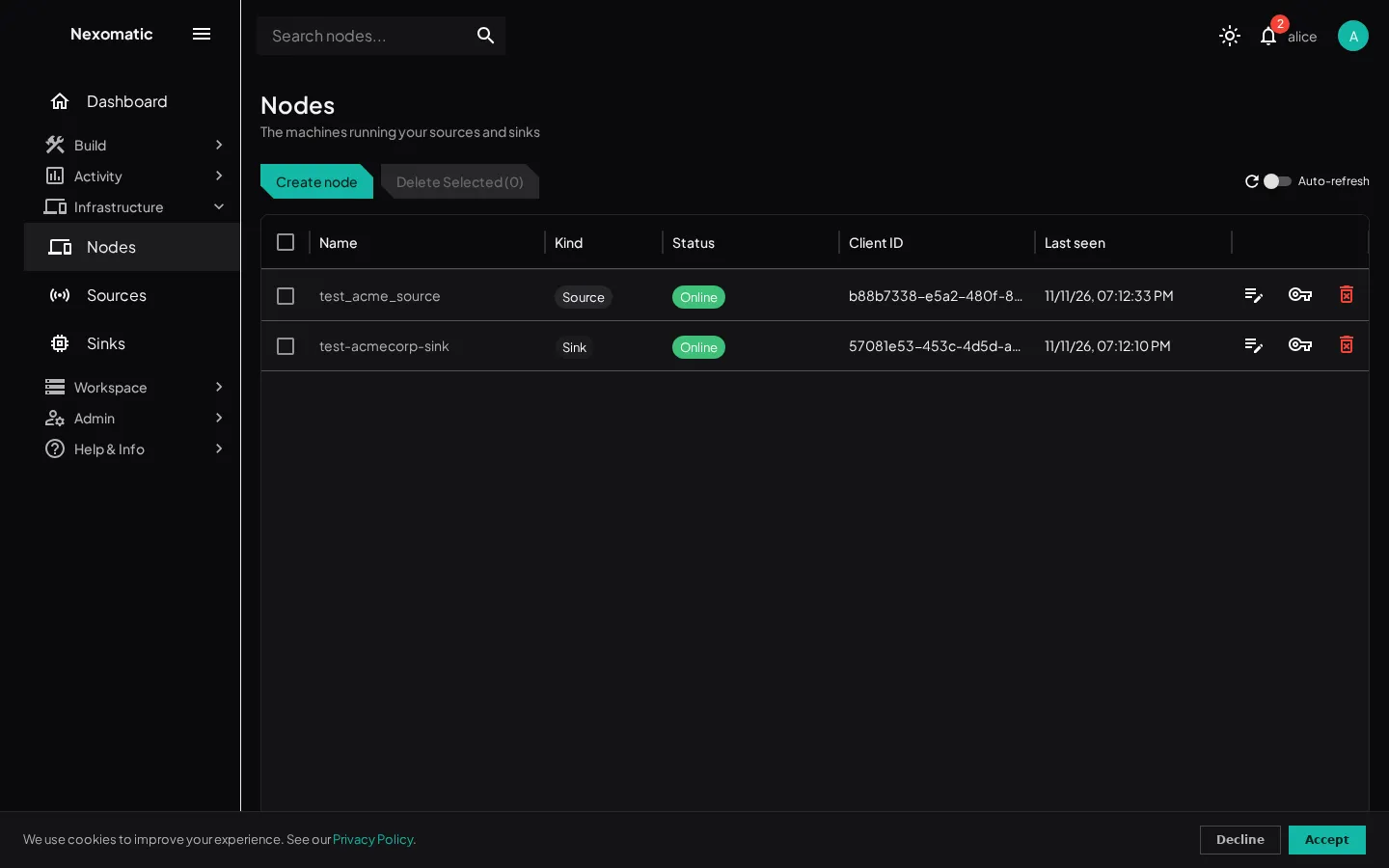
The Nodes Screen
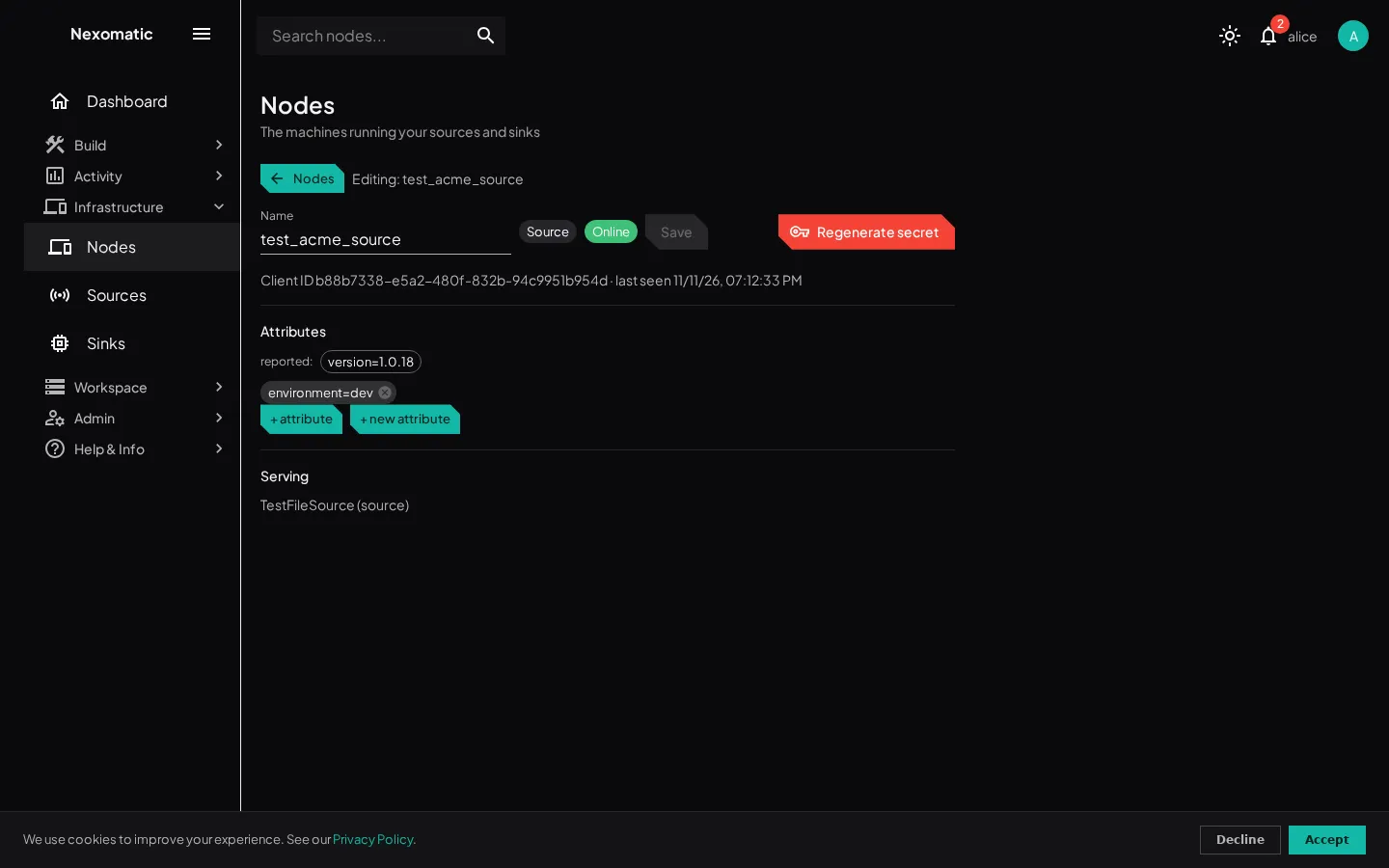
Section titled “The Nodes Screen”Like every other screen, Nodes uses the standard grid → editor pattern: the grid is the default view (Name / Kind / Status / Client ID / Last seen, checkboxes, Topbar search, 25 rows per page), and creating or opening a node slides the full-screen editor in. The editor shows:
| Part | Description |
|---|---|
| Name + kind + status | You name it (e.g. “Office PC”); kind is Source or Sink; status is Online / Offline / Awaiting node (created, not yet registered) / Kill requested / Error |
| Client ID · last seen | The identity the installed service authenticates with |
| Attributes | The node’s key/value pairs — see below |
| Serving | Which sources and sinks are currently placed on this node |
| Regenerate secret | Rotates the node’s credentials (old secret stops working immediately) |
When a node is offline, the grid shows it as Offline, and its work is held — never moved to the platform.
Node Attributes
Section titled “Node Attributes”Every node carries an attribute sheet that decides where work can run. Attributes live in the node editor (open any node, or during Create node):
- Reported attributes (
os,arch, engine version, libraries) are written by the node itself at registration — read-only chips. - User-assigned attributes (e.g.
zone=ot,tools=ffmpeg): click a chip to rename it inline (the rename propagates to every node and constraint at once); remove with the ✕.
Adding attributes:
- + attribute — pick from previously defined keys and values (multi-valued keys accept several; single-valued keys can’t be doubled).
- + new attribute — define one on the spot: name, single/multi, first value. Creating the node applies its attributes in the same action.
- + new value — add a new value to an existing key while assigning it.
See Sinks & Placement for how attributes drive placement matching.
Creating a Node and Installing the Service
Section titled “Creating a Node and Installing the Service”- Click Create node — pick a name and a kind.
- A dialog shows the client ID and client secret exactly once. Save them.
- Install the node service on the machine (see Installing Sources or Installing Sinks) and enter the credentials — the installer prompts for
CLIENT_ID/CLIENT_SECRET. - Once the service registers, the node flips to Online.
The secret is never shown again. If you lose it, Regenerate secret rotates it — the old one stops working immediately, so update the installed service right away.
Where Does This Run
Section titled “Where Does This Run”Placement is decided in the flow builder, not by attaching flows to nodes:
- Sources carry their own placement — pinned to one of your source nodes, or on the platform.
- Flow steps run on a sink — pinned to a node, any matching node, or the platform. Bare “any matching node” and “platform” are built-in picker choices.
A flow with no placement runs on the platform.
When a Node Goes Offline
Section titled “When a Node Goes Offline”- Source nodes: sources placed on it simply stop producing events until the node returns. They are never moved to the platform.
- Sink nodes: “any matching” steps redistribute to other nodes whose attributes cover the step’s needs and constraints. A Windows node never takes over work that needs Linux, and a node without the required attribute (e.g.
zone=ot) never takes over constrained work. When no matching peer exists, tasks are held until one does — never run on the platform. - The Nodes screen shows the node as Offline, and affected flows are flagged until the machine is back.
If a node is gone for good, delete it here — sources and sinks placed on it must be re-placed.