
Schedules
import { Aside } from ‘@astrojs/starlight/components’;
Schedules let you trigger any Flow automatically at a set time using a standard cron expression. Navigate to Schedules in the sidebar.
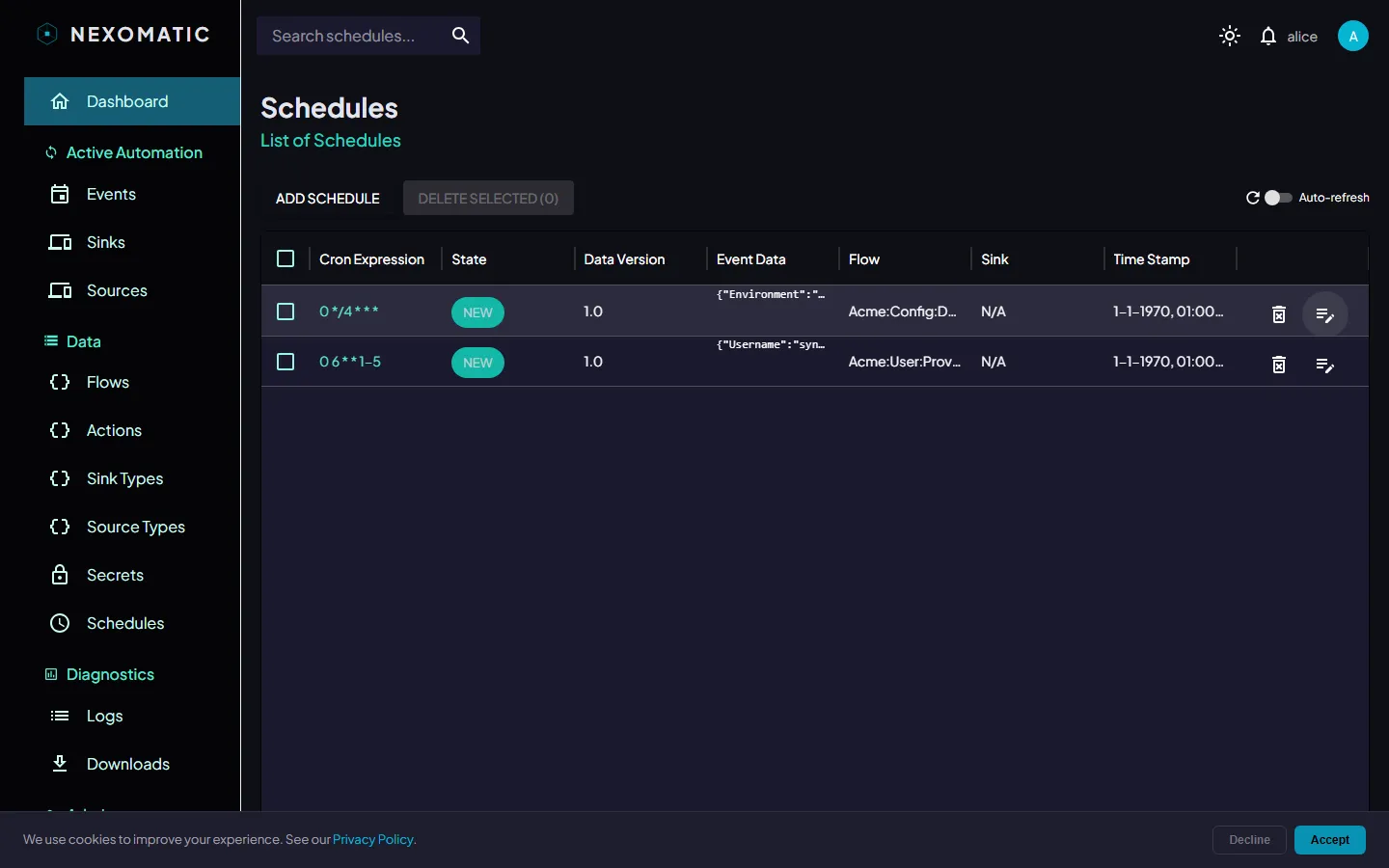
The Schedules Table
Section titled “The Schedules Table”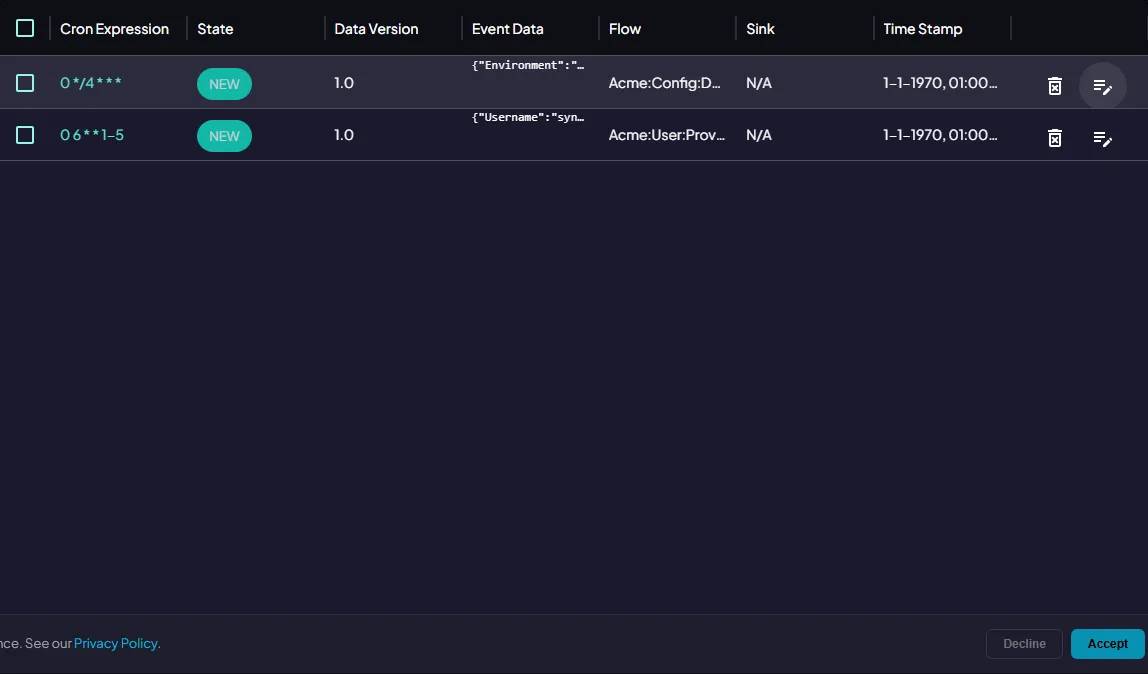
| Column | Description |
|---|---|
| Cron Expression | The schedule timing in cron format |
| State | Current schedule state (see below) |
| Data Version | Incremented when the schedule is updated |
| Event Data | JSON payload delivered to each triggered event. Hover for the full document |
| Flow | The flow this schedule fires |
| Sink | (Optional) Pinned to a specific sink agent |
| Timestamp | When the schedule was last modified |
Schedule States
Section titled “Schedule States”| State | Meaning |
|---|---|
NEW | Recently created, not yet evaluated |
SCHEDULED | Active and waiting for the next trigger time |
UPDATED | Modified since last run — will be re-evaluated |
DELETED | Marked for deletion |
TODELETE | Delete requested — waiting for scheduler confirmation |
Search
Section titled “Search”
Use the Search schedules… field in the topbar to filter by cron expression, event type, or state. Results update as you type.
Creating a Schedule
Section titled “Creating a Schedule”Click Add Schedule in the toolbar and fill in:
| Field | Description |
|---|---|
| Cron Expression | When to fire (see examples below) |
| Flow | Which flow to trigger |
| Event Data | JSON payload to include in each triggered event |
| Sink | (Optional) Force execution to a specific sink |
Cron Expression Examples
Section titled “Cron Expression Examples”Cron expressions use 5 fields: minute hour day-of-month month day-of-week.
| Expression | Fires |
|---|---|
0 9 * * 1-5 | Every weekday at 09:00 |
*/15 * * * * | Every 15 minutes |
0 0 1 * * | First day of every month at midnight |
30 8 * * 1 | Every Monday at 08:30 |
0 6,18 * * * | Twice daily at 06:00 and 18:00 |
Editing a Schedule
Section titled “Editing a Schedule”Click the edit icon on a schedule row to open the detail panel and modify it.
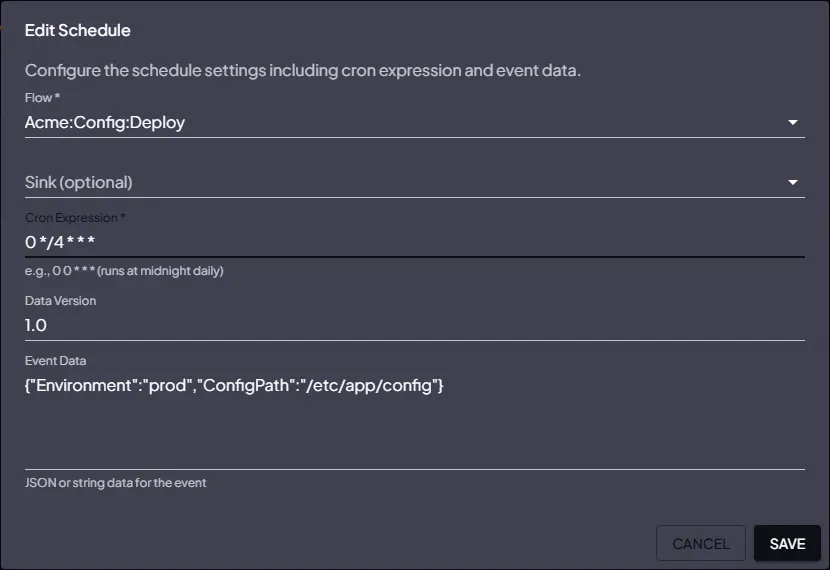
Changes take effect from the next evaluation cycle. The state changes to UPDATED until the scheduler processes the change.
Deleting a Schedule
Section titled “Deleting a Schedule”Click the delete icon and confirm. The schedule is marked DELETED and will no longer fire.
For bulk deletion, check multiple rows and click Delete Selected.
Pinning to a Sink
Section titled “Pinning to a Sink”By default, a schedule-triggered event dispatches to any available sink of the appropriate type. To force a specific machine (e.g. a task that accesses local files), select that sink in the Sink dropdown when creating or editing the schedule.
Monitoring Schedule Executions
Section titled “Monitoring Schedule Executions”Each schedule firing creates an Event. To see the history of executions for a schedule, go to the Events screen and filter by the Flow linked to the schedule.